

How to Set Up a Compliant Dual-Monitor Home Office in Europe
How to Set Up a Compliant Dual-Monitor Home Office in Europe
A paralegal in Berlin — call her Marta — was hired by a Frankfurt law firm that recently authorized permanent remote work. Her employer shipped her a ThinkPad X1 Carbon for firm work. She already owned a MacBook Pro for freelance consulting. Two laptops. One desk. One aging monitor from 2019. By week three, she had neck pain from swiveling between screens and a terse message from IT: firm documents were appearing in a personal iCloud backup.
The setup problem and the compliance problem turned out to be the same problem. Fixing the hardware fixed the liability. Here is how that works, step by step.
This is not legal advice — consult a licensed attorney for guidance specific to your employment situation and jurisdiction.
What EU Law Actually Requires for Home Office Equipment
This part consistently surprises remote workers. Across the European Union, employers who authorize remote work arrangements don’t simply hand over a laptop and call it done. Multiple national frameworks — each implementing Council Directive 89/391/EEC, the EU’s foundational workplace health and safety law — place enforceable equipment obligations on employers for home workstations. These are not best-practice recommendations. They carry real legal weight.
Germany: The Arbeitsstättenverordnung and What It Covers
Germany amended its Workplace Ordinance (Arbeitsstättenverordnung, or ArbStättV) in 2021 to explicitly address home office arrangements. Under the revised ArbStättV, employers must typically ensure home workstations meet ergonomic standards: appropriate monitor height, adequate lighting, and suitable keyboard and pointing device positioning. Courts have generally found that if a German employer establishes a permanent remote work arrangement — Telearbeit, as distinct from occasional mobile working — the employer bears responsibility for equipment that meets those standards, not merely for shipping a laptop and assuming the employee owns a compliant desk.
Whether a second monitor falls within that obligation depends on job function. Legal review, financial analysis, coding, and design roles have strong documentary bases for requesting dual-display setups. The approach that works: document your current setup in writing, document the functional reason dual monitors are necessary for your specific role, and submit a formal request. German employers facing a written, legally grounded equipment request rarely refuse outright — particularly when the legal basis is cited by name.
France: Télétravail Under the Labor Code
France codified remote work in Articles L1222-9 through L1222-11 of the Labor Code, with substantial updates following the 2020 télétravail expansion. French law typically requires employers to cover the necessary costs of remote work. The Cour de cassation has reinforced this reading: employers cannot require employees to use personal equipment for professional tasks without providing either the equipment itself or financial compensation. Asking a paralegal to work from a personal laptop on client files, without reimbursement, sits on shaky legal ground in France.
Many French companies now operate under sector-level télétravail agreements (accords de branche) that specify exactly what equipment employers must provide. These vary significantly by industry. Legal, financial, and technology sector agreements tend to be the most detailed about display setups and docking equipment. Check your accord — if it lists a single display and your role clearly requires two, you have a documented starting point for a formal request.
The Netherlands, the UK, and the Post-Brexit Picture
Dutch employment law follows a comparable pattern under the Working Conditions Act (Arbeidsomstandighedenwet). The Netherlands added a legal right to formally request remote work in 2022 through the Wet werken waar je wilt. When that right is exercised and remote work is authorized, it triggers employer equipment obligations under the working conditions framework — the same logic as Germany and France.
The UK, post-Brexit, no longer applies EU directives directly. But the Health and Safety (Display Screen Equipment) Regulations 1992 remain fully in force — and they pre-date EU membership. UK employers with authorized home workers must still conduct formal workstation assessments and address identified deficiencies. In practice, the obligations are nearly identical to the EU framework in scope and outcome.
Across all these jurisdictions, the consistent principle is this: authorizing remote work shifts equipment liability toward the employer. Most workers don’t know this. Fewer have asked. The ones who document their request in writing and cite the applicable regulation typically get results.
Building a Two-Laptop Dual-Monitor Station: Step by Step

Most remote workers managing two laptops fall into the same trap. One monitor connected to whichever machine is considered primary. The second laptop sits at an awkward angle beside it. Every time they need the other machine, they swivel. Within two weeks, they stop switching entirely and just squint at a smaller screen.
That is a hardware failure, not a discipline problem. The fix routes both laptops through a single docking hub that drives both monitors simultaneously — no cable swapping, no friction.
The Equipment List (With Real Prices)
Two monitors. Matching models matter more than most people expect. Mismatched panels create different color temperatures and brightness levels that produce real eye fatigue over an 8-hour workday. The Dell U2722D (27-inch, 4K IPS, approximately $399 each) is the reliability standard for European office environments. The ASUS ProArt PA279CV ($329) is worth the slight premium for color-sensitive work like design or photography editing. Either handles a professional workflow cleanly.
A KVM switch dock with Multi-Stream Transport (MST). This is the component most buyers get wrong. Standard USB-C docks drive one external monitor per connected laptop. An MST-capable dock splits a single output signal across two monitors simultaneously. Without MST, running dual displays from a single docking connection is not possible, regardless of how much you spend on the dock itself.
Shared peripherals that follow the active machine. The Logitech MX Keys S keyboard ($109) and MX Master 3S mouse ($99) can pair with up to three devices natively via Bluetooth — or connect through the dock’s USB hub, where the KVM switch manages the handoff automatically on each toggle.
The Connection Process, Step by Step
- Connect USB-C cables from the KVM dock to each laptop. The AV Access KVM Switch Dock provides 60W Power Delivery on each USB-C port independently — not a shared 60W budget split between two machines. A MacBook Air and a ThinkPad X1 Carbon can both charge at full load simultaneously without a second wall adapter on the desk.
- Run HDMI cables from both dock outputs to your two monitors. At 4K@60Hz, both displays auto-detect on connection in most cases without requiring manual resolution configuration on either machine.
- Plug your keyboard, mouse, and any shared USB peripherals into the dock’s USB-A hub ports. They follow the active machine automatically when you toggle the switch.
- Connect the dock’s 1Gbps Ethernet port directly to your router or network switch. Corporate VPN connections drop packets under Wi-Fi congestion. Wired Ethernet through the dock removes that variable without requiring a separate physical switch on the desk.
- Test the toggle. Full control — both displays, keyboard, mouse, and USB hub — should transfer to the newly active laptop in under two seconds.
EDID emulation is the feature that separates a usable setup from a frustrating one. Monitors report their resolution and color capabilities to the connected laptop via EDID signals. Without EDID emulation, every machine toggle forces both monitors to renegotiate those signals — and the operating system relocates all open windows to random screen positions. With EDID emulation stored locally in the dock, your window layout persists across every toggle, exactly where you left it.
KVM Dock vs. Software Sharing: A Direct Comparison
Three realistic approaches exist for sharing one desk between two laptops. The right answer depends on your resolution requirements and whether corporate IT allows third-party software on the managed work machine.
| Method | Cost | Max Resolution | Drives Dual Monitors | IT Policy Risk | Switch Speed |
|---|---|---|---|---|---|
| Software KM (Logitech Flow, Synergy, Barrier) | Free–$29 | Each monitor independent | No — each display stays on one machine | High — software install required on work machine | Instant cursor crossing |
| Basic KVM switch (single HDMI, no dock) | $40–$80 | 1080p@60Hz typical | No — one display only | Low | 1–4 seconds |
| KVM switch dock (MST, dual HDMI, USB-C PD) | $180–$280 | 4K@60Hz / 2K@144Hz / 1080p@240Hz | Yes — both monitors from one dock | None — hardware, fully transparent to OS | 1–2 seconds |
Logitech Flow is genuinely clever software. The problem: most corporate endpoint security platforms treat it as a data exfiltration risk, because it transfers clipboard content across a network boundary between devices. If your work laptop has an MDM profile — which it almost certainly does in law, finance, or tech — installing Flow likely violates your IT policy. It may also trigger DLP alerts before you even finish configuration.
For maximum Thunderbolt throughput, the CalDigit TS4 Thunderbolt 4 Dock ($249) is the premium alternative. But it requires Thunderbolt 4 ports, which many business laptops — including most ThinkPad and Dell Latitude models currently in enterprise fleets — still lack. And it does not function as a KVM switch between two separate machines.
The AV Access dual-HDMI KVM dock runs at 2K@144Hz for high-refresh workflows and 1080p@240Hz for fast-motion use — specs that basic single-HDMI switches from Ugreen, TESmart, or ATEN cannot match at comparable price points. The combination of 1Gbps Ethernet and 60W-per-port PD makes it a complete docking station for two workstations, not just a signal toggle.
GDPR and the Hardware Separation Argument
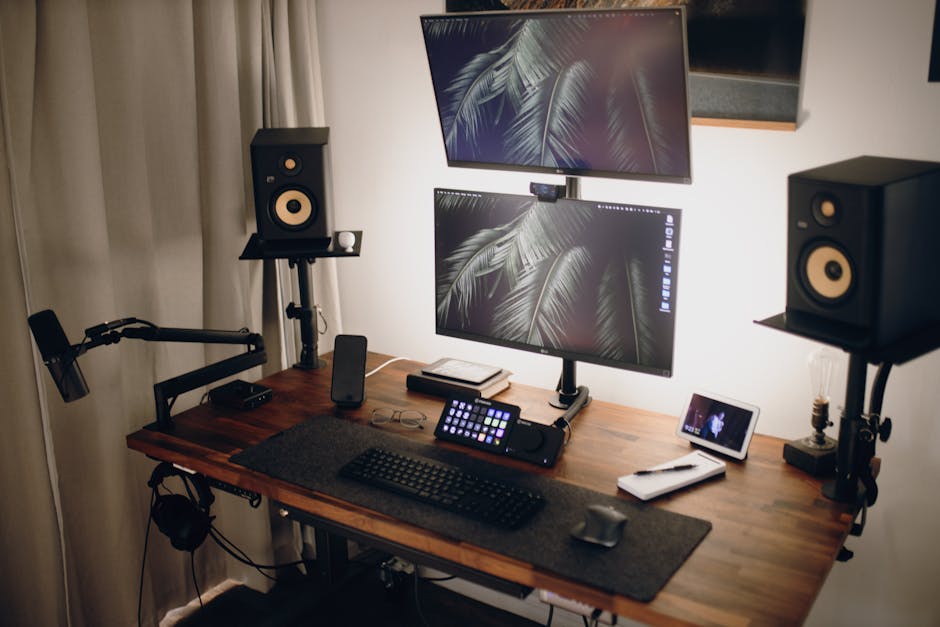
Running two laptops through a KVM switch is one of the cleaner GDPR compliance decisions a remote worker can make. Each machine stays on its own network segment, and the dock passes only peripheral signals — keystrokes, mouse movements — without copying any data between machines. No shared clipboard crosses the boundary. No accidental sync between a personal cloud account and employer-processed personal data. Clean separation between two data controllers, enforced at the hardware layer.
Setting Up Compliant Audio for EU Remote Meetings
Do not use an omnidirectional microphone in a home office where non-consenting third parties might be within range. That is the practical verdict from the EU ePrivacy Directive and its national implementations — Germany’s BDSG, France’s loi Informatique et Libertés, the Netherlands’ Telecommunicatiewet. If a household member, neighbor, or visitor is captured by your microphone during a recorded conference call, you may have processed their personal data without a legal basis under GDPR Article 6.
German data protection authorities (Landesdatenschutzbehörden) have issued specific guidance on home office recording situations. The question courts typically examine: who was within microphone range, and had they consented to capture on a call that may be recorded by the employer’s conferencing platform? The answer matters more than most remote workers realize until it doesn’t go their way.
Four Steps to a Legally Sound Home Office Audio Setup
- Solo calls from a private room: Use a directional microphone or headset with strong noise cancellation. The Jabra Evolve2 85 ($449) is the standard in European legal and financial environments — cardioid pickup pattern, active noise cancellation rated for open-plan offices, certified for Microsoft Teams and Cisco Webex. The Bose 700 UC ($379) is a strong alternative at slightly lower cost. Both capture your voice and very little else.
- Multi-person rooms where all present have consented: A 360-degree speakerphone is appropriate when every person in the physical space is a party to the meeting. The conference speakerphone with AI noise reduction and 360° voice pickup supports daisy-chained microphone extensions for rooms of up to 20 participants, with 10W output — enough clarity for a medium conference room without a fixed AV installation. USB and Bluetooth connectivity means it works with both your work and personal laptop without additional drivers.
- Check auto-recording settings on your platform: Zoom, Microsoft Teams, and Cisco Webex all offer auto-record features. Under GDPR, automatic recording without explicit participant notification is a data processing problem. Turn off auto-record and use deliberate, announced recording instead — this is a configuration change that takes about 90 seconds and removes a meaningful legal exposure.
- Document your audio equipment in your remote work agreement: If your employer’s télétravail agreement or Homeoffice-Vereinbarung does not specify what audio equipment is used on recorded client calls, ask for an addendum that does. This protects both parties if a recorded conversation is ever disputed — and it documents that your employer approved the setup in advance.
None of this requires deep legal knowledge. It requires deliberate choices made once at setup time, written down, and followed consistently.
How Marta’s Setup Turned Out

Six months after that IT security email, Marta’s desk looks like this: ThinkPad X1 Carbon on the left USB-C port, MacBook Pro on the right. Two matching 27-inch Dell U2722D monitors run from a single KVM dock. One button toggles all peripherals and both displays between machines in under two seconds. Logitech MX Keys keyboard on the dock’s USB hub. No cable swapping. No shared clipboard. No path for firm documents to reach her personal iCloud.
Her Frankfurt employer, after she submitted a written equipment request citing the ArbStättV provisions for home workstation ergonomics, covered the cost of the dock and the second monitor. The request took three weeks to approve — slower than she’d have liked — but the legal grounding held up without a dispute.
The setup problem and the compliance problem were always the same problem. Hardware separation resolved the data leak. The legal framework paid for the hardware that made it possible.
This is not legal advice — consult a licensed attorney for guidance specific to your employment situation and jurisdiction.

Related Posts